MCP server not showing up in Claude, Cursor or VS Code: how to fix
An MCP server that does not show up has almost always failed to start, and the client has written the reason to a log you have not opened yet. Where Claude Desktop, Claude Code, Cursor and VS Code keep their config and their logs, the 6 mistakes behind most failures, and a checker for your own config.
Tecyfy · Published · 8 min read
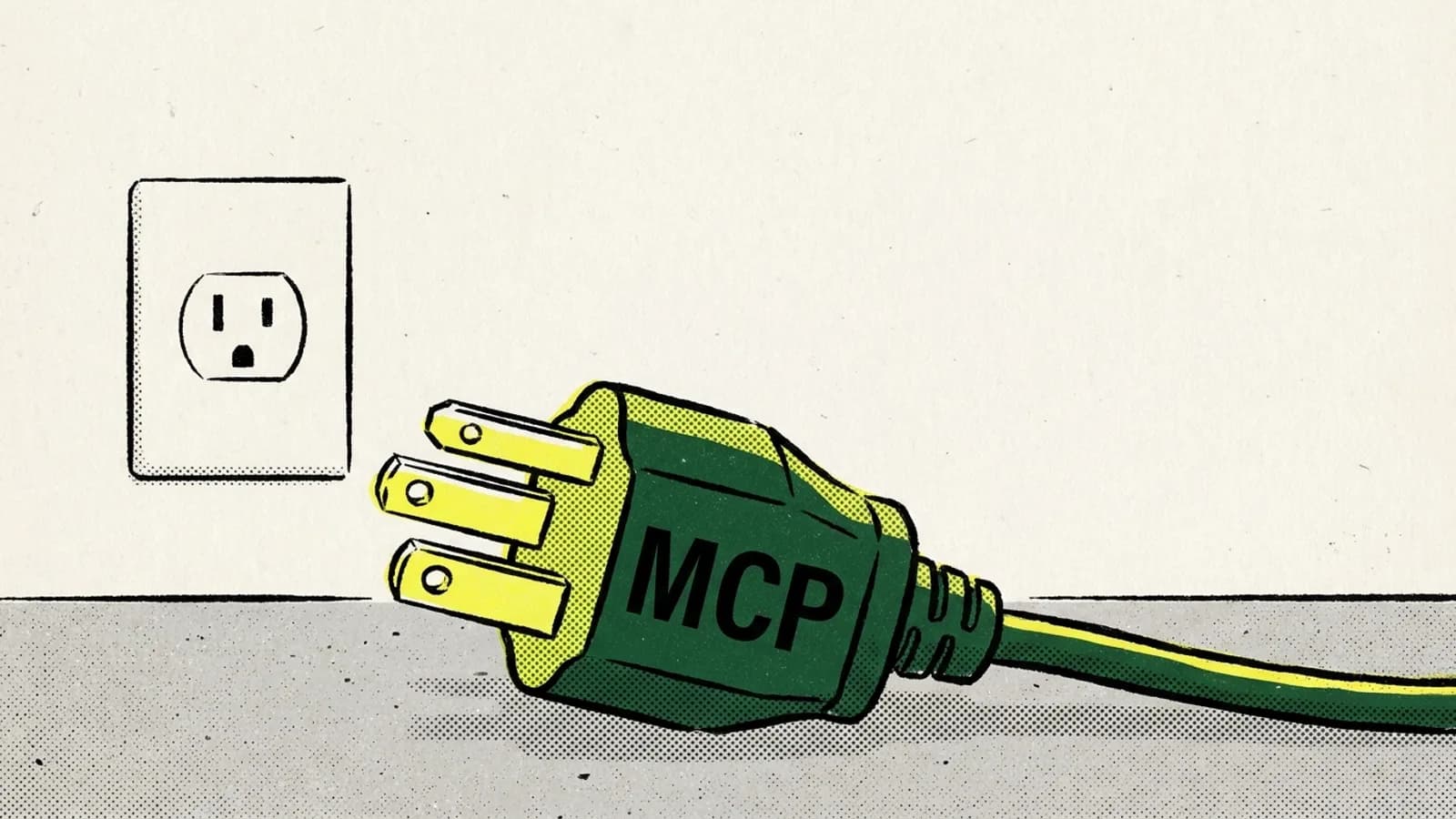
An MCP server that does not show up in Claude, Cursor or VS Code has nearly always failed to start, and the client wrote down why. Open the log first: Claude Desktop keeps one file per server in ~/Library/Logs/Claude on a Mac, Claude Code prints the error with claude mcp list, Cursor has an "MCP Logs" channel in its Output panel, and VS Code has Show Output on each server. Most failures come down to 6 mistakes: broken JSON, the wrong top-level key, a relative path, a missing environment variable, a missing runtime, or a client that was never fully restarted.
The client rarely says any of this on screen. A server that crashes on start simply is not in the list, which looks the same as a server you never added.
Check your config
Paste the config file from your client. The checker finds the mistakes the MCP docs and the clients' own docs name, and tells you where that client keeps its file and its logs.
- "files": the argument "./data" is a relative path. Use the full path, such as /Users/you/data.
- "files": npx without -y can stop to ask before installing the package, and nobody is there to answer. Add "-y" first.
- "files": env.API_KEY is empty. A server started by the client gets only a few of your shell's variables, so set it here.
- Where Claude Desktop reads it
- ~/Library/Application Support/Claude/claude_desktop_config.json (Windows: %APPDATA%\Claude\claude_desktop_config.json)
- Where to see why it failed
- ~/Library/Logs/Claude/mcp.log and mcp-server-<name>.log (Windows: %APPDATA%\Claude\logs)
3 problems found. Fix them, then: Quit Claude Desktop completely and open it again. Closing the window is not enough.
Checks the mistakes the MCP debugging guide and the clients' docs name. It cannot run your server: to see its own error, run the command from the config in a terminal.
Where each client keeps its config and its logs
Each client reads its own file, and a server added to one is invisible to the others. Check you edited the file your client reads, at the scope you meant.
| Client | Config file | Top-level key | Where the error is |
|---|---|---|---|
| Claude Desktop | ~/Library/Application Support/Claude/claude_desktop_config.json (Windows %APPDATA%\Claude\, Linux ~/.config/Claude/) | mcpServers | ~/Library/Logs/Claude/mcp-server-<name>.log |
| Claude Code | .mcp.json in the project, or ~/.claude.json | mcpServers | claude mcp list, claude mcp get <name>, /mcp |
| Cursor | .cursor/mcp.json in the project, or ~/.cursor/mcp.json | mcpServers | Output panel, MCP Logs |
| VS Code | .vscode/mcp.json, or mcp.json in your user profile | servers | Server's ... menu, Show Output |
On a Mac, this follows every Claude Desktop MCP log as it is written:
tail -n 20 -f ~/Library/Logs/Claude/mcp*.log
mcp.log holds the connection failures, and mcp-server-<name>.log holds what the server itself printed to stderr, which is usually the real error: a missing module, a bad key, a port in use.
The 6 mistakes behind most failures
1. The JSON does not parse. One trailing comma after the last server and the client loads none of them. Claude Code and the checker above report it; Claude Desktop just shows nothing.
2. The top-level key is wrong. Claude Desktop, Claude Code and Cursor read mcpServers. VS Code's own format reads servers. A config copied from a README written for Claude, pasted into .vscode/mcp.json, loads nothing.
3. A path is relative. The client starts your server, and the folder it starts it from may not be your project. On macOS it can be /. So ./data or ./server.py points at the wrong place. The MCP debugging guide says to use absolute paths everywhere in the config.
4. An environment variable is missing. A server started from your terminal sees everything in your shell, including the API key in your .zshrc. A server started by the client gets only a small set of variables. Put what it needs in the server's env block. In Claude Code, ${VAR} with no value loads as the literal text and prints a warning, and a token pasted with a trailing newline is not trimmed.
5. The runtime is not where the client looks. Many servers start with npx, so Node.js must be installed and on the PATH the client sees. Run node --version in a terminal. On Windows, an ENOENT error with ${APPDATA} in the path is fixed by adding APPDATA to the server's env, and npx can keep failing until npm is installed globally.
6. The client was not restarted. Claude Desktop reads its config at start, and closing the window does not quit it. Quit it from the menu and open it again. Cursor needs a restart after you edit the file, VS Code has Restart Server on each server, and Claude Code reads the config when a session starts.
Client-specific traps
Claude Code asks before it uses a server from a project's .mcp.json. Until you approve it, claude mcp list shows it as pending approval. claude mcp reset-project-choices brings the question back if you said no. When you add a local server on the command line, put -- before the server's command, or Claude Code reads the server's own flags as its options:
claude mcp add --transport stdio myserver -- python /Users/you/server.py --port 8080
A slow server can time out on start; MCP_TIMEOUT=10000 claude gives it 10 seconds.
Cursor can switch a server off. Under Customize, a disabled server does not load or appear in chat, so check its toggle. Cursor's own variables are ${env:NAME} and ${workspaceFolder}.
VS Code asks you to trust a server on first start and after a config change. If you continued without it, run MCP: Reset Trust to be asked again. A server run through Docker must not use -d, because the client needs the container's stdio connection.
The server shows up but its tools never get called
That is a different problem. The server started, so the config is fine. Check that the server is switched on and exposes the tools you expect, which every client lists. Then look at the tools' names and descriptions: the model picks a tool from its description, and a vague one ("does stuff with files") loses to a clearer tool or to no tool at all. Too many servers at once makes this worse, as our piece on MCP tool bloat explains.
If you wrote the server yourself
2 rules catch most homemade servers:
- Never print to stdout. For a local server, stdout is the protocol channel. A stray
print()orconsole.log()breaks the connection. Log to stderr, which the client saves for you. - Run it outside the client first. Run the exact command from your config in a terminal. If it crashes there, the client never stood a chance. Then connect the official MCP Inspector to it and call each tool by hand.
Our guide to building an MCP server walks through a working server from scratch, and how to vet an MCP server covers what to check before you install someone else's. For how the protocol itself works, see Model Context ProtocolModel Context ProtocolAn open standard for connecting AI applications to tools and data. A system offered once as an MCP server works in any application that speaks MCP., and for Claude Code's scopes and commands in full, our Claude Code MCP guide.
Questions
- Why is my MCP server not showing up in Claude Desktop?
- Usually because it failed to start. Check that claude_desktop_config.json is valid JSON, that every path in it is absolute, then quit Claude Desktop completely and reopen it. If it still does not show, read ~/Library/Logs/Claude/mcp-server-<name>.log on a Mac or %APPDATA%\Claude\logs on Windows for the server's own error.
- Where is the Claude Desktop MCP config file?
- On macOS it is ~/Library/Application Support/Claude/claude_desktop_config.json, on Windows %APPDATA%\Claude\claude_desktop_config.json, and on Linux ~/.config/Claude/claude_desktop_config.json. Settings, Developer, Edit Config opens it.
- Where are Cursor's MCP logs?
- Open the Output panel and choose MCP Logs from its list. They show server start-up, tool calls and errors.
- Why does VS Code not load my mcp.json?
- VS Code's mcp.json uses a top-level servers key, not mcpServers, which Claude Desktop and Cursor use. A file copied from another client with the wrong key loads no servers.
- How do I see why an MCP server failed in Claude Code?
- Run claude mcp list, which adds the failure to each server's status line, or claude mcp get <name>, which shows it on an Issue line. Inside a session, /mcp shows the status of every server.
- How do I test an MCP server without a client?
- Run the exact command from your config in a terminal to see its error, then connect to it with the MCP Inspector, the official testing tool, to call its tools directly.
Sources